This article explains how to broadcast on Mixlr using DJ software - Traktor, an external MIDI controller - Hercules DJ Console MK4, and Soundflower. You’ll be using Traktor to mix tracks from your PC, the external MIDI controller to control your levels crossfader etc and Soundflower to pass the audio between them.
These instructions also apply if you’re using a Traktor S2 or S4.
This article also contains our beta desktop app. Read more about it, and download here.
Step 1 - Download Soundflower
If you don’t have Soundflower installed already, you can download it here.
Step 2 - Create an Aggregate Device
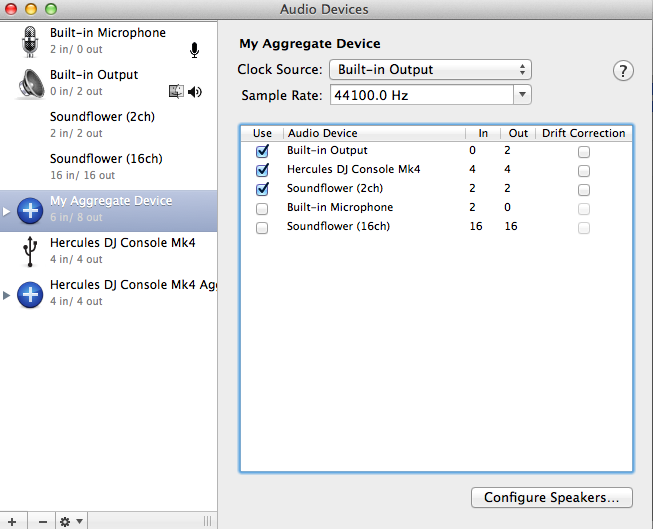
You will need to create an aggregate device in order to route your MIDI controller and Soundflower to Traktor.
Go to Audio Midi Setup on your mac, and add a new device by clicking the + icon in the bottom left-hand corner. Then set-up the aggregate device as follows:
Step 3 - Traktor Audio Setup
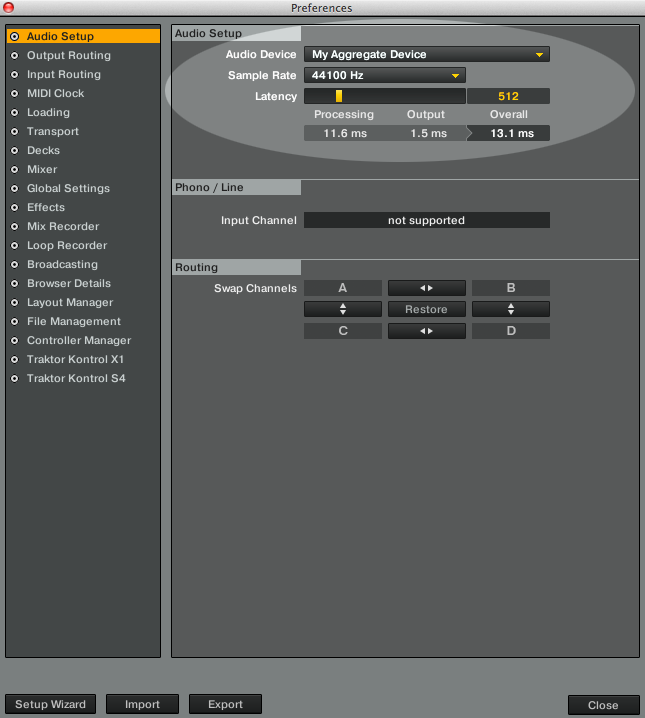
Ensure the Audio Setup settings in Traktor are as follows:
Step 4 - Traktor Output Setup
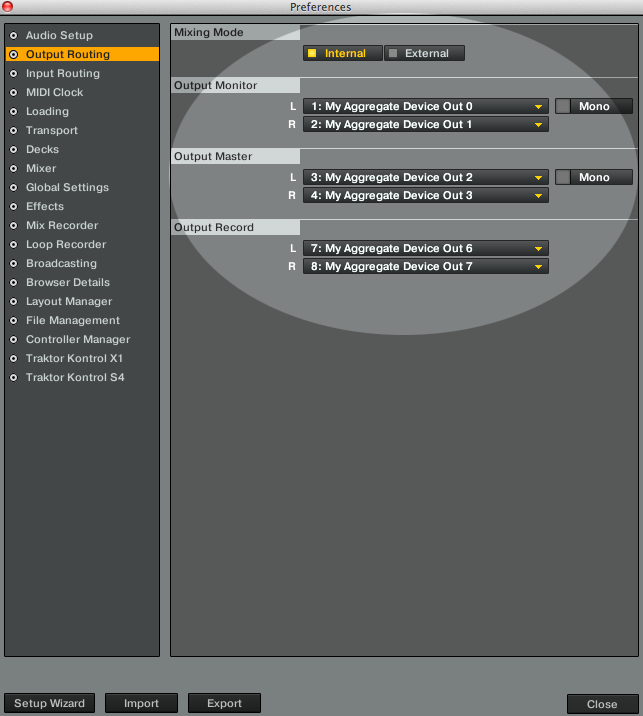
Ensure the Output Setup settings are as follows:
Step 5 - Traktor Recorder Setup
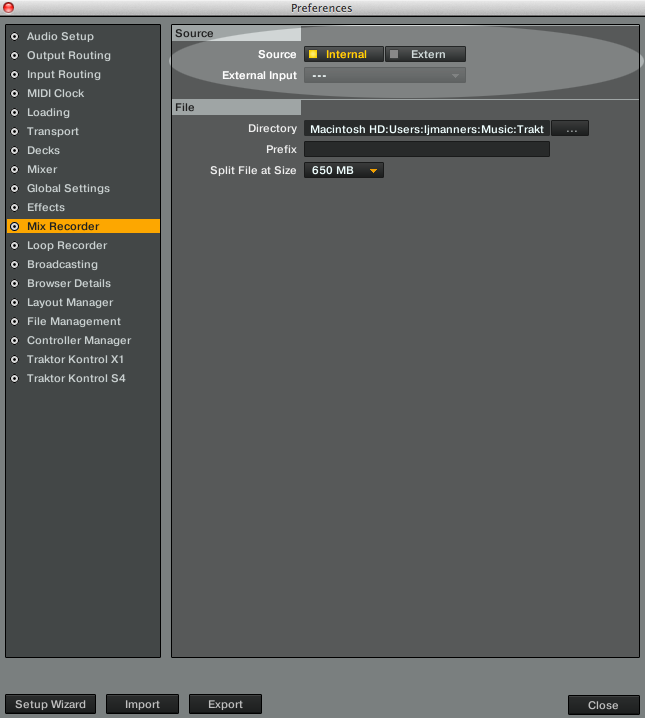
Ensure the Mix Recorder settings are as follows:
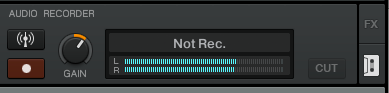
The audio recorder in Traktor needs to show signals coming through, as pictured below. You will not need to press the record button.
Step 6 - Mixlr Setup
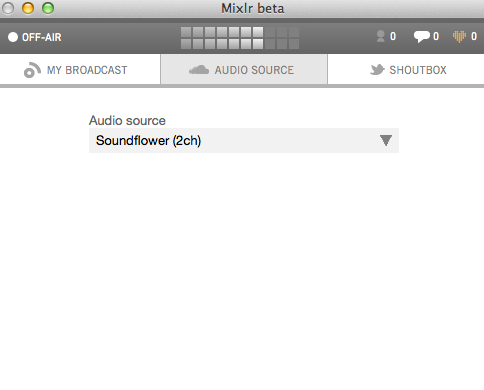
Select Soundflower (2 ch) as your audio source: