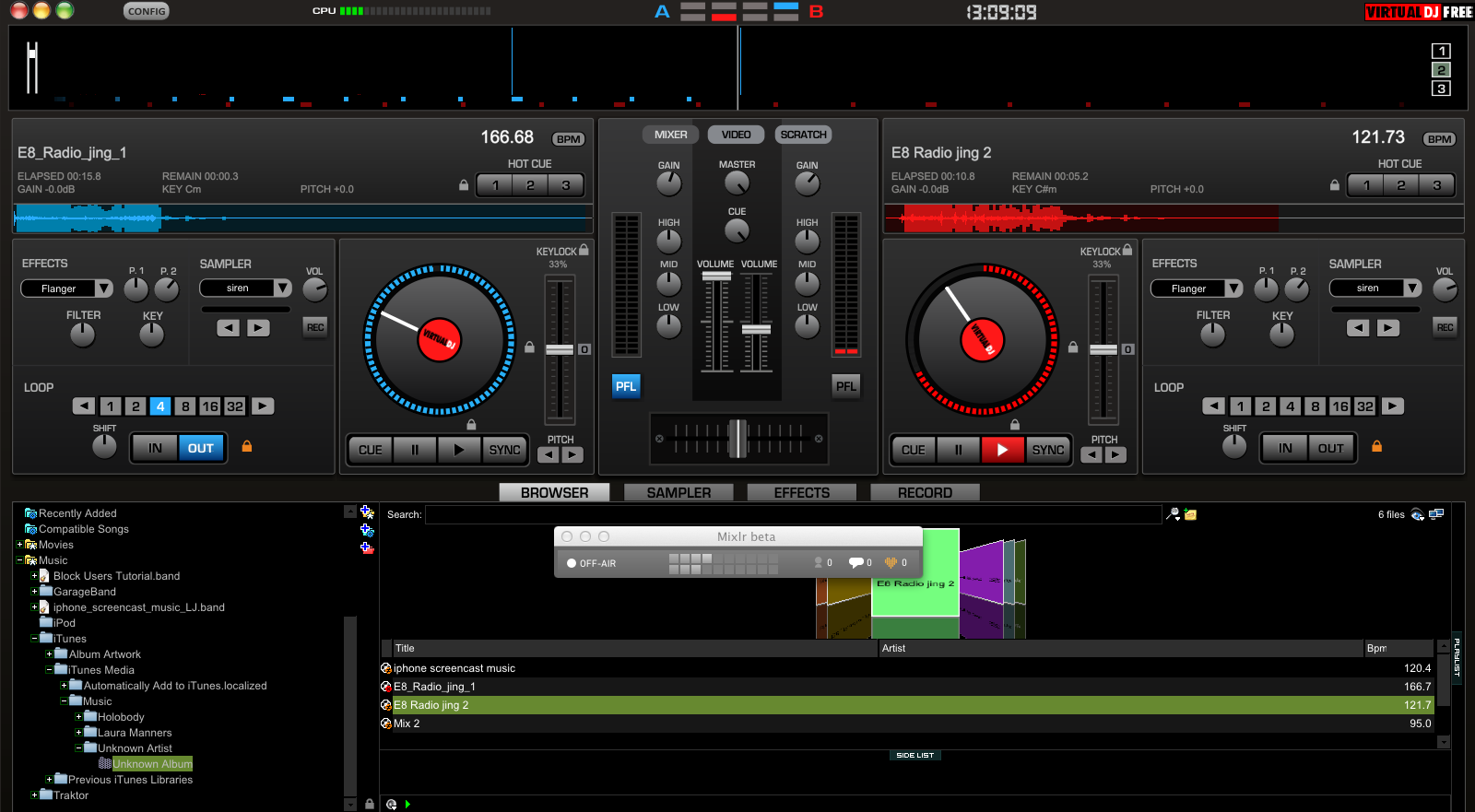
This post explains how to broadcast on Mixlr using Dj software - Virtual DJ and an external MIDI controller - Hercules DJ Console MK 4.
Tip - These instructions can be translated to almost any external controller or audio interface.
This article also contains our beta desktop app. Read more about it, and download here.
Step 1 - Open Virtual DJ’s configurations

Step 2 - Select Sound Set-up
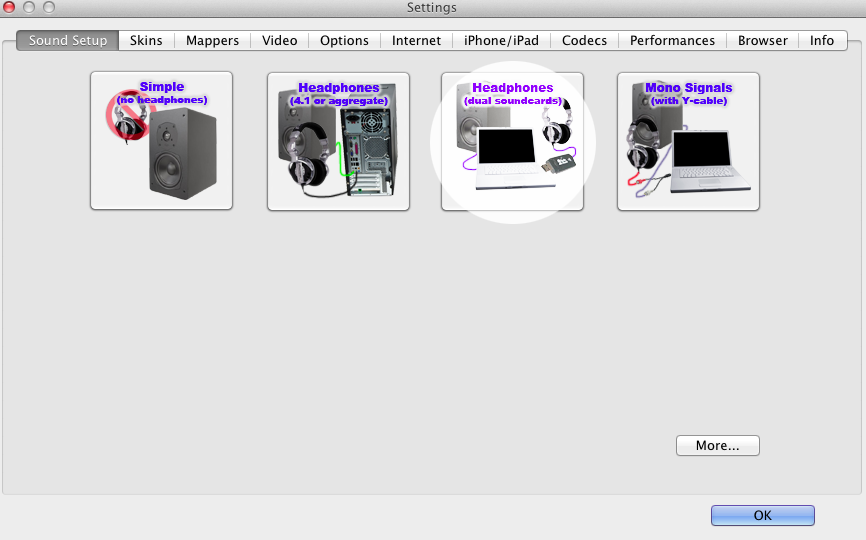
In the first window, select the Headphones (dual soundcards) option, then select more at the bottom of the window:
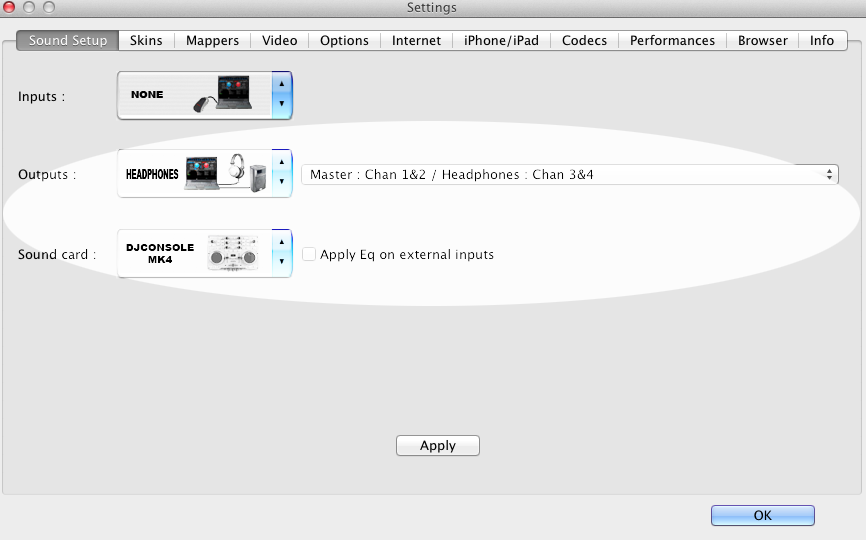
Make the following output and sound card selections in the next window:
Step 3 - Mixlr Audio Source
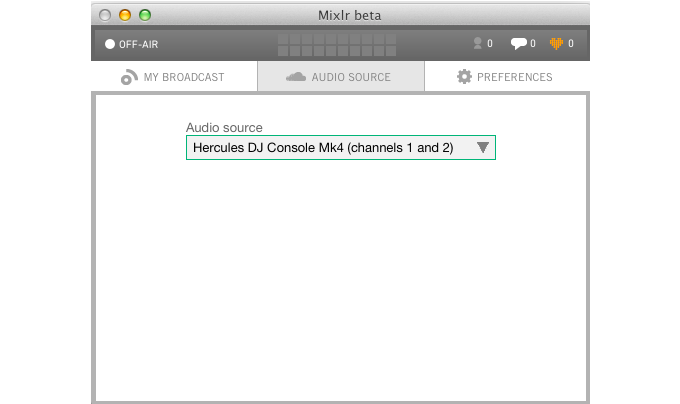
Select the Hercules as your audio source:
Step 4 - Connect output to input on Hercules
Simply physically route Output 1-2 to Input 1-2 on the Hercules using a phono to phono cable:
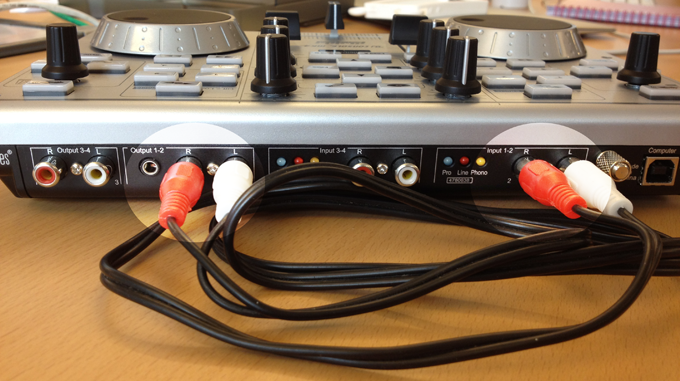
Step 5 - Go live and enjoy!