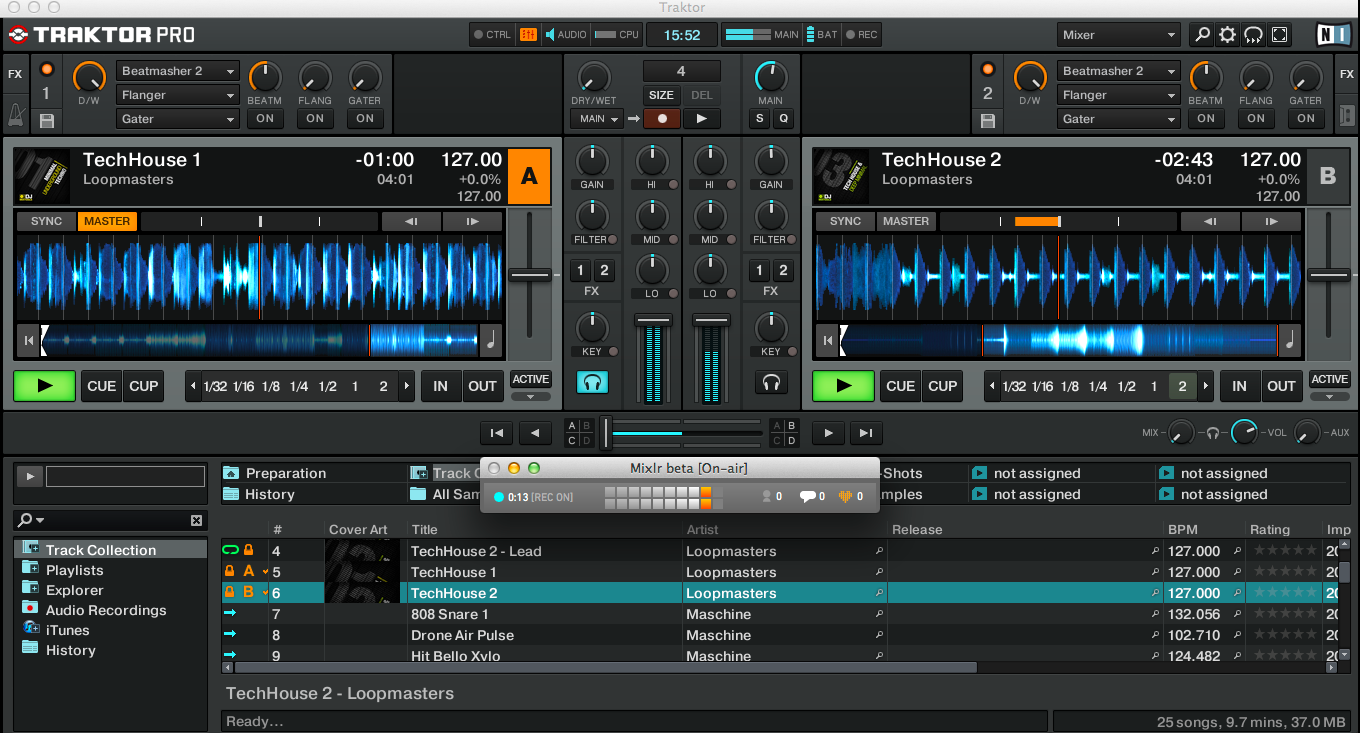
This post explains how to broadcast on Mixlr using DJ software - Traktor and an external controller - Hercules DJ Console Mk4. You’ll be using Traktor to mix tracks from your PC, and your external MIDI controller to control your levels, crossfader etc. Your entire set will be broadcast live and direct on Mixlr. Sweet!
Tip - These instructions can be translated to almost any external controller or audio interface.
The article also contains our beta desktop app. Read more about it and download Mac OS X and Debian Linux versions here.
Step 1 - Open Traktor Preferences
You will find the audio preferences in Traktor’s settings:

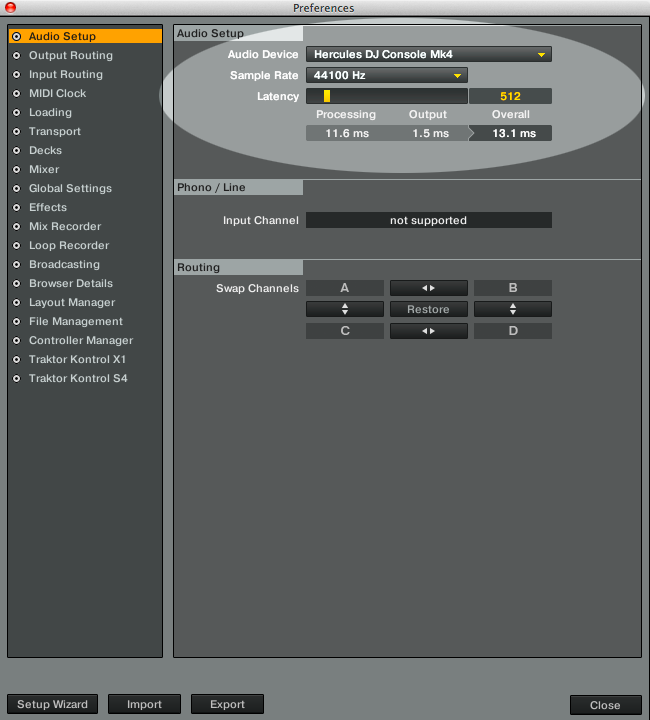
Step 2 - Traktor Audio Setup
Ensure the Audio Setup settings in Traktor are as follows:
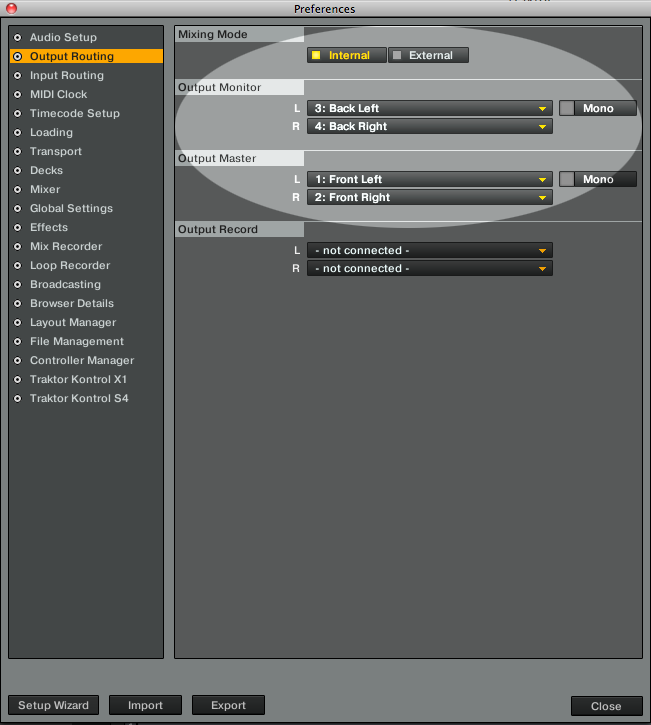
Step 3: Traktor Output Routing
In the Output Routing settings in Traktor, ensure the Output Monitor and Output Master are as follows:
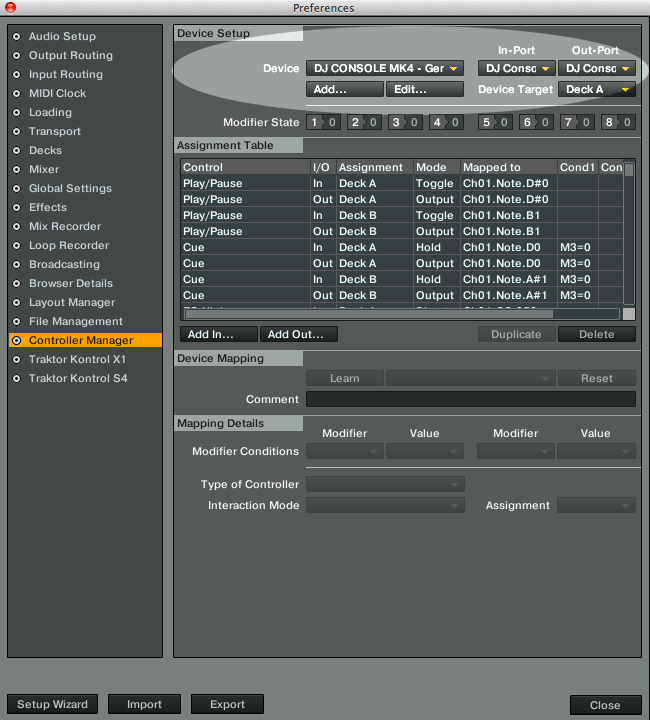
Step 4: Map Controller to Traktor
You need to ensure your external controller is mapped to Traktor. Go into Controller Manager and map the controller to Device, In-Port and Out-Port as shown below:
Tip - If you can’t see your Hercules controller in the drop-down, you may need to install the DJ console control panel and import the .tsi file to Traktor. Details of how to do this can be found here
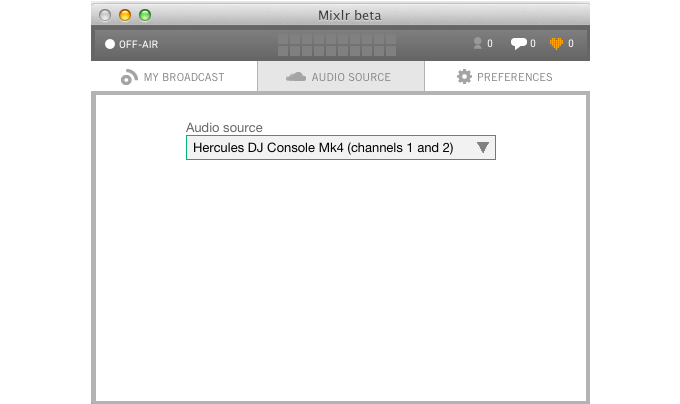
Step 5: Mixlr Audio Source
Select Hercules as your audio source
Step 6: Connect output to input on Hercules
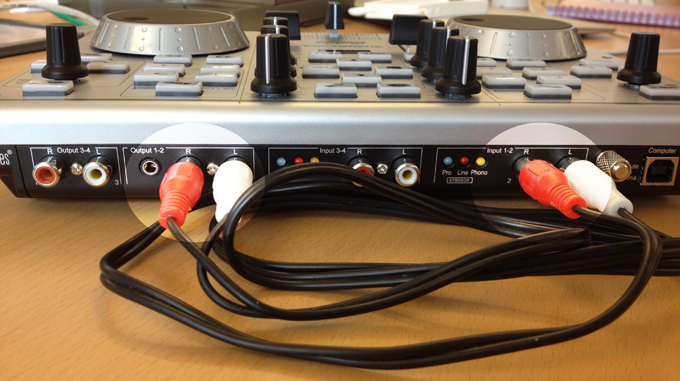
Traktor is sending audio to Output 1-2, whilst Mixlr is trying to receive audio from Input 1-2.
Simply physically route Output 1-2 to Input 1-2 on the Hercules using a phono to phono cable:
Step 7: Go-live and enjoy!