
In this article, we’re going to explain how to find new things to listen to on Mixlr, and how to make sure you never miss out on the newest, freshest sounds.
1. Explore the wheel
On the Mixlr landing page, you can click anywhere or the wheel to go straight to a live broadcast. Each section of colour represents a different category of music or spoken word, and you can see the categories as you hover over the wheel. The size of a section represents the number of listeners, so if a section is big, it’s popular right now.
Let’s take a look at the wheel now:
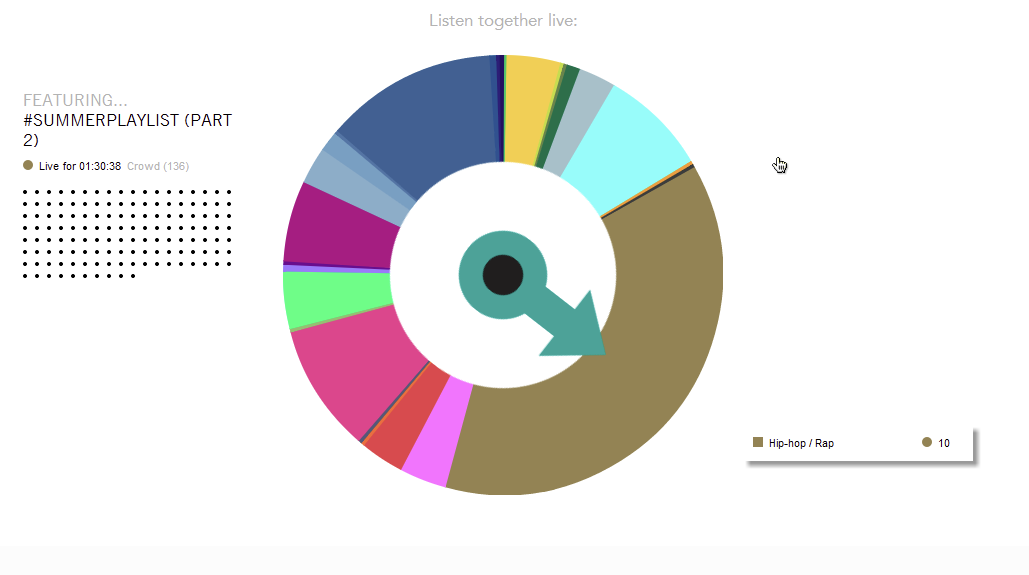
We’re on the Hip-hop / Rap section. The ‘10’ tells us there are currently 10 broadcasts happening in this category. Up on the left, we can see the most popular Hip-hop / Rap broadcast on now is ‘#Summerplaylist part 2’, with 136 listeners in the crowd.
Click on any section on the wheel to go to the category page, where you can choose a broadcast from the list.
2. Browse by category
The drop-down menu shows you all the categories, and the number live broadcasts in each category. Hover over the green section of the bar at the top and the category pane menu drops down.
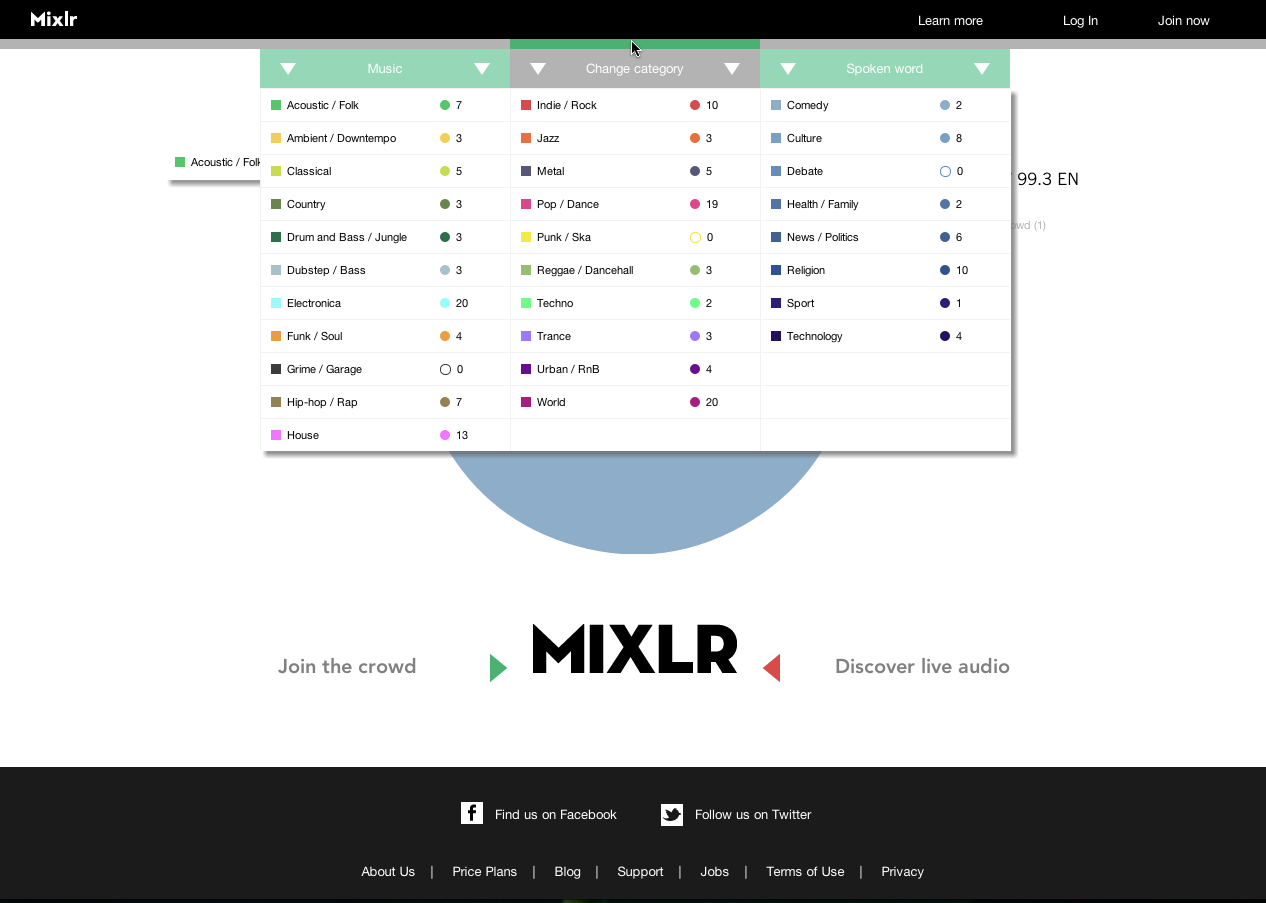
Click on a category to go to the category page. You’ll see the stations currently broadcasting, as well as the scheduled upcoming broadcasts
When you’re listening to a broadcast, you can click 'Change Broadcaster’ in the category pane to jump to another broadcaster in the same category:
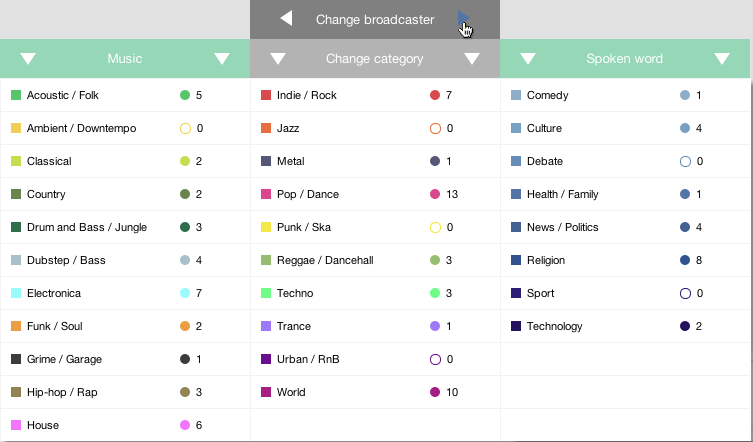
Wherever you are on the main site, you can always access this menu, so it’s a really handy way of browsing.
3. Chrome extension
If you’re using Google Chrome, you can install the Mixlr Chrome extension.
After you’ve installed the Chrome App, you’ll see the extension on your browser. Click to see a menu of all the current broadcasts. The most popular broadcasts are at the top of the list. You can click on ‘new’ at the top of list to see the broadcasts that have started most recently.
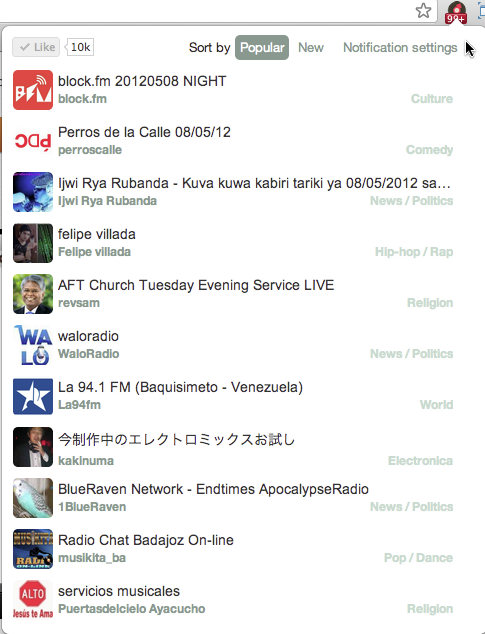
When you’re online, the app automatically notifes you when a new broadcast starts, you don’t even need to be on the website. This way you can check out fresh broadcasts as soon as they start.
There are many live broadcasts on Mixlr, so you may want to change your notification settings to suit your listening taste. You can do this by clicking on ‘notification settings’ at the top of the list.
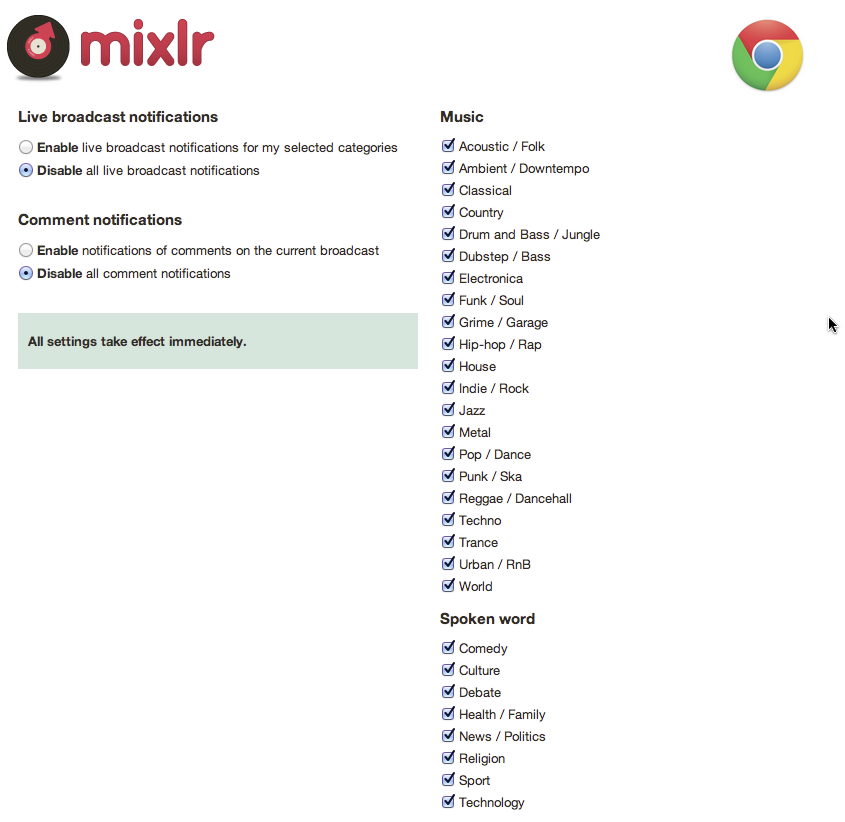
Here you can select the categories you like (and deselect those you don’t), and choose whether you want to get notifications when a broadcast starts, and whether you want to get notifications for new comments. Of course, you can also choose not to receive any notifications.
4. “Mixlr Live” on Twitter
Follow @mixlrlive to get real-time broadcast updates. Note that this is a dedicated account for broadcast updates only. For the main news and chat, follow @mixlr.
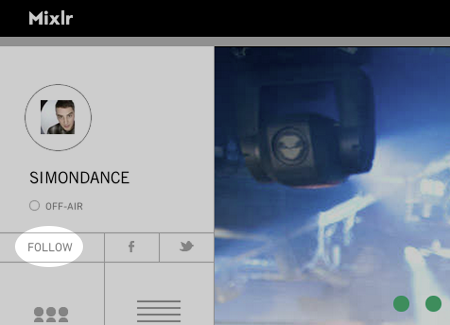
Remember that when you discover a broadcast you like, it’s a good idea to follow the broadcaster so you’ll never miss another show!
5. Find out what your friends are into
Keep and eye on Facebook. When your friends are using Mixlr you’ll get updates in your Facebook ticker which let you know what they’re enjoying. You can click on the update to jump straight into the crowd and join them there.
Look at friends’ timelines and you can also find out which crowds they’ve been in.
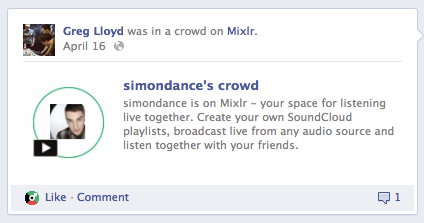
You have to sign in to Mixlr with your Facebook ID to share updates on Facebook, so for the best social sharing experience, make sure your friends are doing it too.
