
Here in the Mixlr office, one of the most common technical questions we are asked is: How can I broadcast a live set directly from software like iTunes, Ableton Live, Virtual DJ, Logic, Traktor, Mixxx, or other similar DJ or music production software?
The short answer is that it depends on which operating system you are running. This tutorial shows how you can broadcast live from almost any audio software on Mac OS X. (Windows users: stay tuned for more news on this topic in the near future).
To complete this tutorial, you need only a copy of Mixlr, some broadcasting credit, and an OS X music or audio application to broadcast from. In the example, we’ll use Ableton Live.
1. Download Soundflower
Soundflower is a free utility which makes it easy to route audio between any two OS X applications. Start by grabbing the latest version. Download the DMG and open it in Finder.

Follow the instructions to install Soundflower on your Mac.
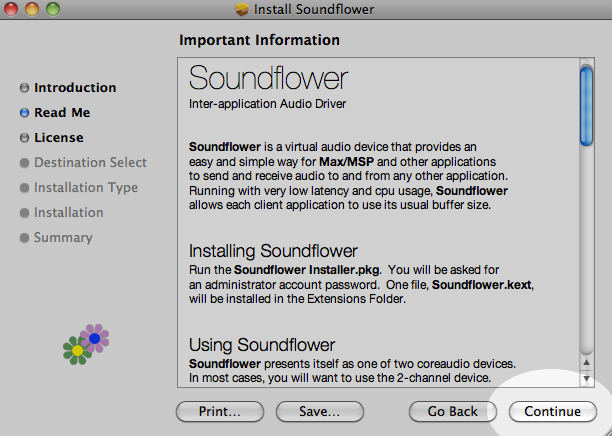
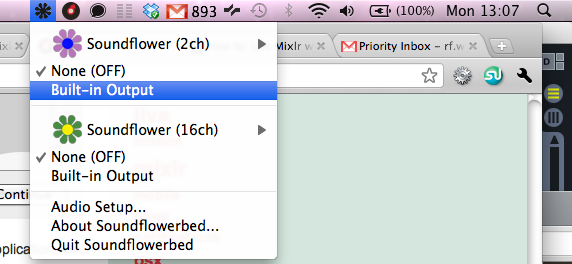
After Soundflower has installed, use Spotlight to search for the Soundflowerbed application, and launch it.

Finally, from the new Soundflower item in your task bar, select Built-in Output underneath Soundflower (2ch). This will turn on monitoring, meaning that we can both send the output of Ableton to Mixlr, and still hear a real-time version of it on our own computer.
2. Setup Ableton
Soundflower works by routing audio between any two applications. It does this by creating its own audio input and output devices. You can choose to select these devices in the audio preferences of most OS X applications.
For this example, we want to route audio from Ableton Live to Mixlr. Firstly, open Ableton Live. Select the menu Live / Preferences. Then, select Audio.
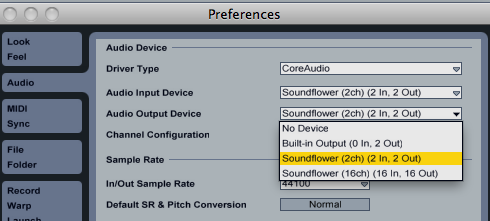
Set the Audio Output Device to Soundflower (2ch).
3. Setup Mixlr
Open Mixlr, and click on Setup new Broadcast. Next to “Built-in Input” (or whatever your default input device is called), click on Change.

On the next page, select Soundflower (2ch) as your audio input device (in the first drop-down menu). Click on Use these settings.
That’s all there is to it! Now, play some audio in Ableton Live. If everything’s gone to plan, you should be able to see the VU-meters in Mixlr reflect whatever is playing in Ableton.
Success!
Now you’re ready to broadcast live from Ableton. Don’t forget, these instructions can be adapted to work with most OS X audio, DJ and music production software. If you have any problems getting it working, feel free to contact us for help.
